









(Pre-Order) Keychron Orca Echo Wireless Ergonomic Split Trackball Keyboard
(Pre-Order) Keychron Orca Echo Wireless Ergonomic Split Trackball Keyboard - Black / Red Switch is backordered and will ship as soon as it is back in stock.
Description
Description
Estimated shipping: April 2027
Free shipping on pre-order items.
- 9-Key Split Keyboard Layout
- Built-in 19mm Trackball
- Three Integrated Pointing Interfaces
- ZMK Open-Source Firmware
- 2.4GHz Wireless & Bluetooth 5.3
- Mac & Windows Compatibility
- Integrated Scroll Pad
- Magnetic Split Design
- POM Low-Profile Switches

(Pre-Order) Keychron Orca Echo Wireless Ergonomic Split Trackball Keyboard - Black / Red Switch is backordered and will ship as soon as it is back in stock.
Orca Echo
The Keyboard You've Been Waiting For. A new split keyboard experience designed for comfort, control, and effortless productivity.
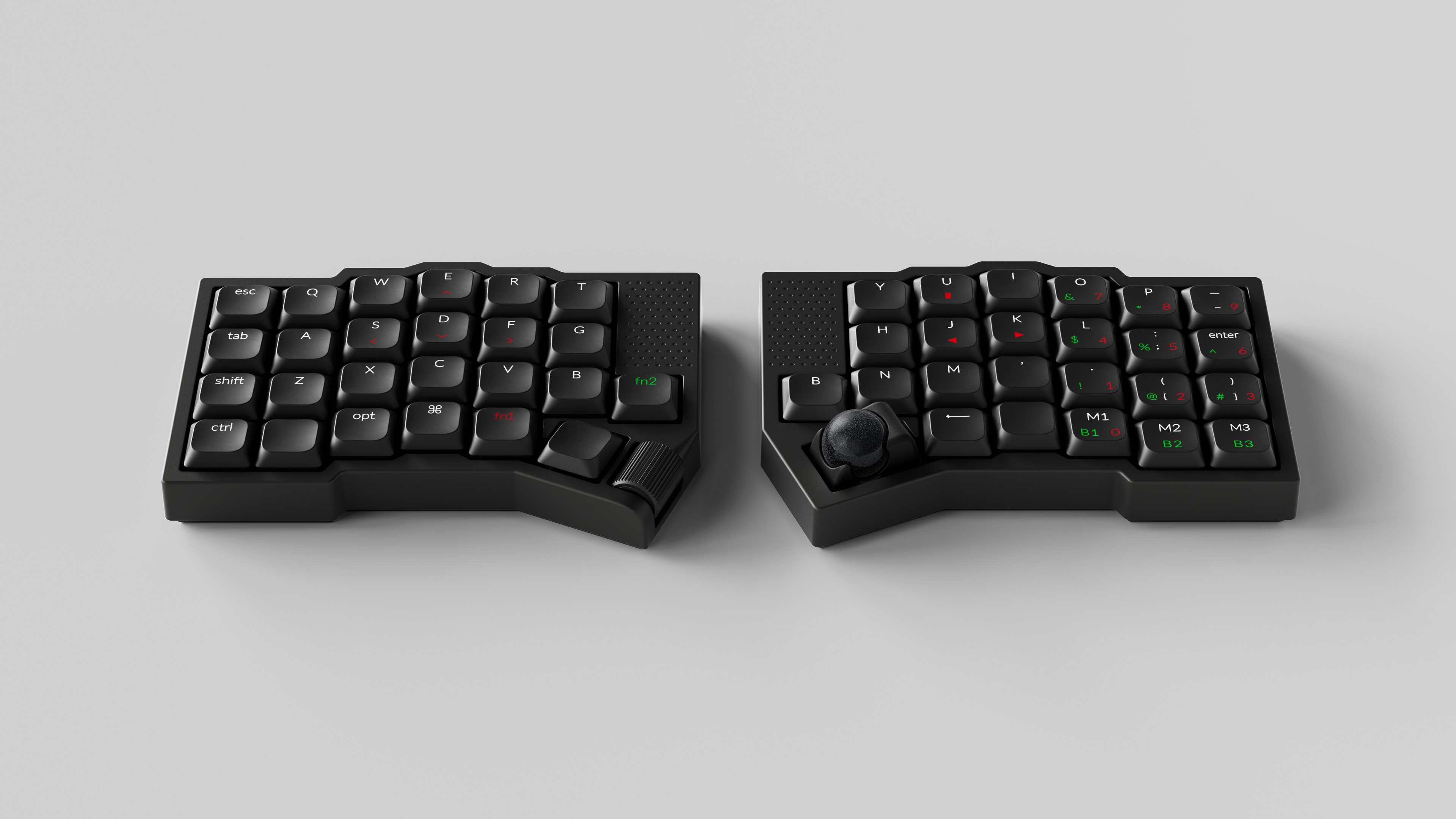
The Ultimate Split Keyboard Experience
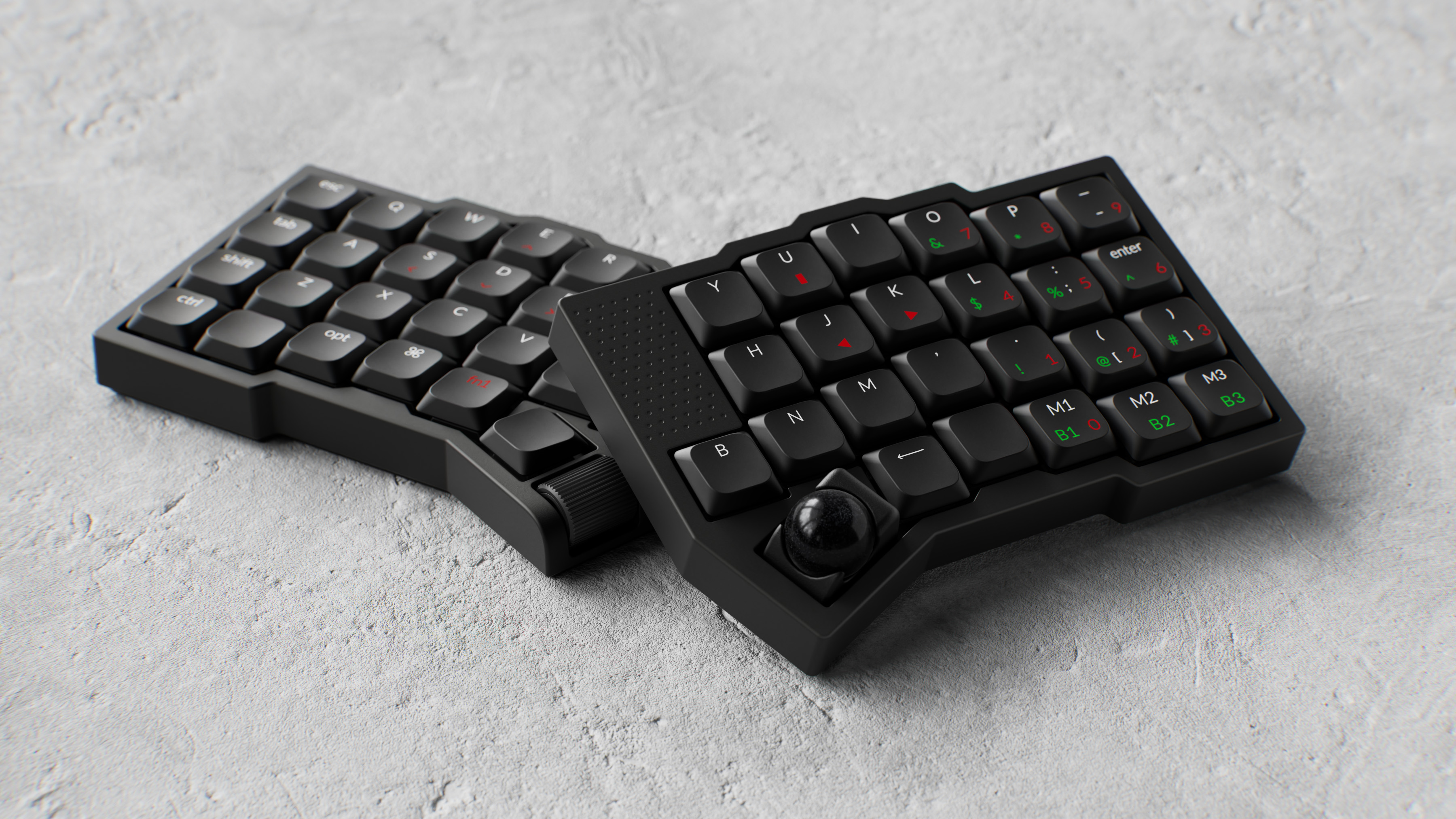
Developed in collaboration with Gizmodo Japan, the Keychron Orca Echo combines ergonomic split-keyboard design with three integrated pointing interfaces.
Featuring a trackball, horizontal scroll wheel, and vertical scroll pad, it lets you type, navigate, and scroll without constantly reaching for a separate mouse.
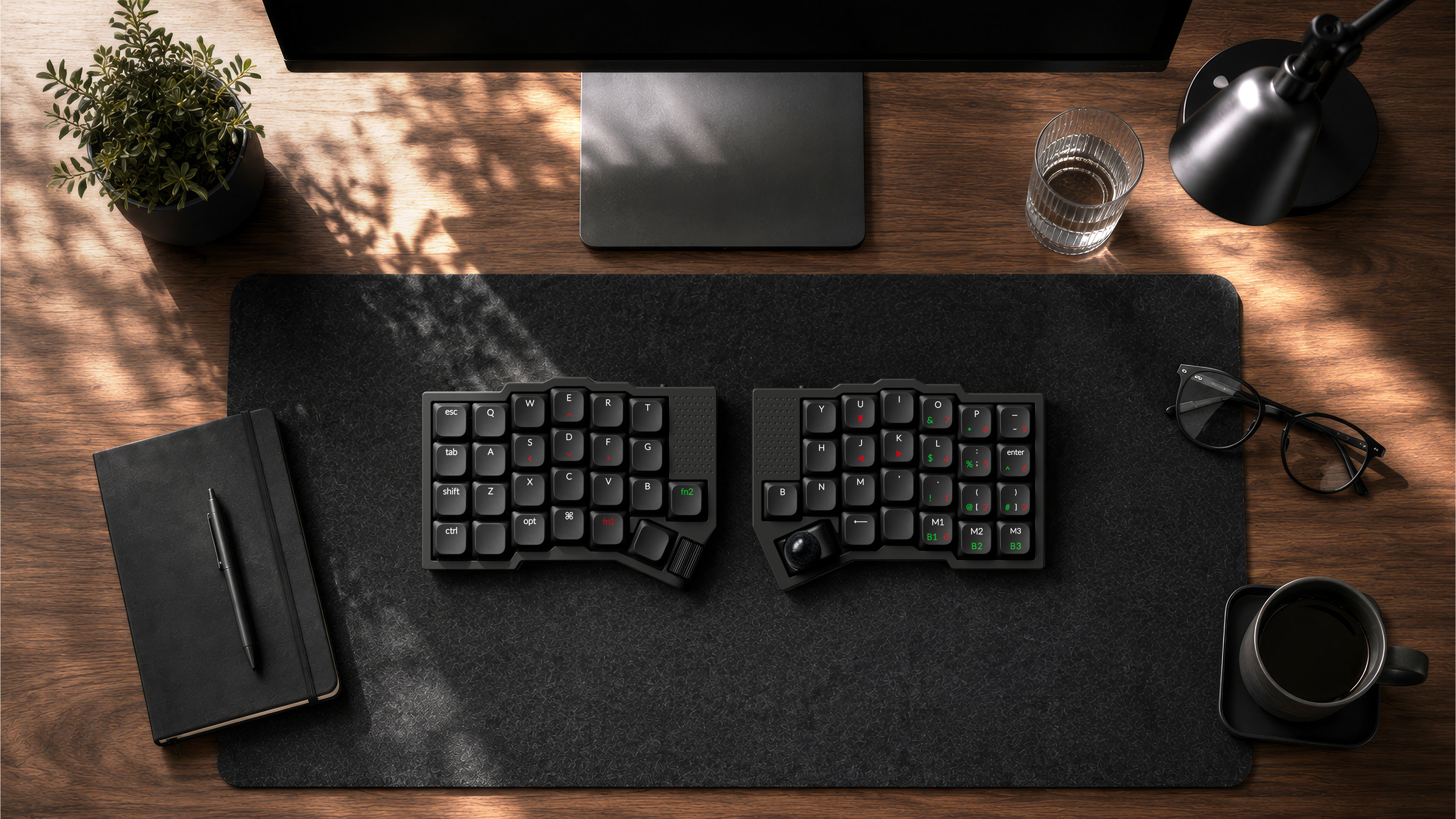
Ergonomic Split Design
Type naturally and comfortably with a split layout that allows your shoulders to relax and your hands to rest in a more natural position.
The integrated two-level tenting stands let you adjust the keyboard angle to suit your preferred typing posture, helping reduce wrist strain during extended typing sessions.

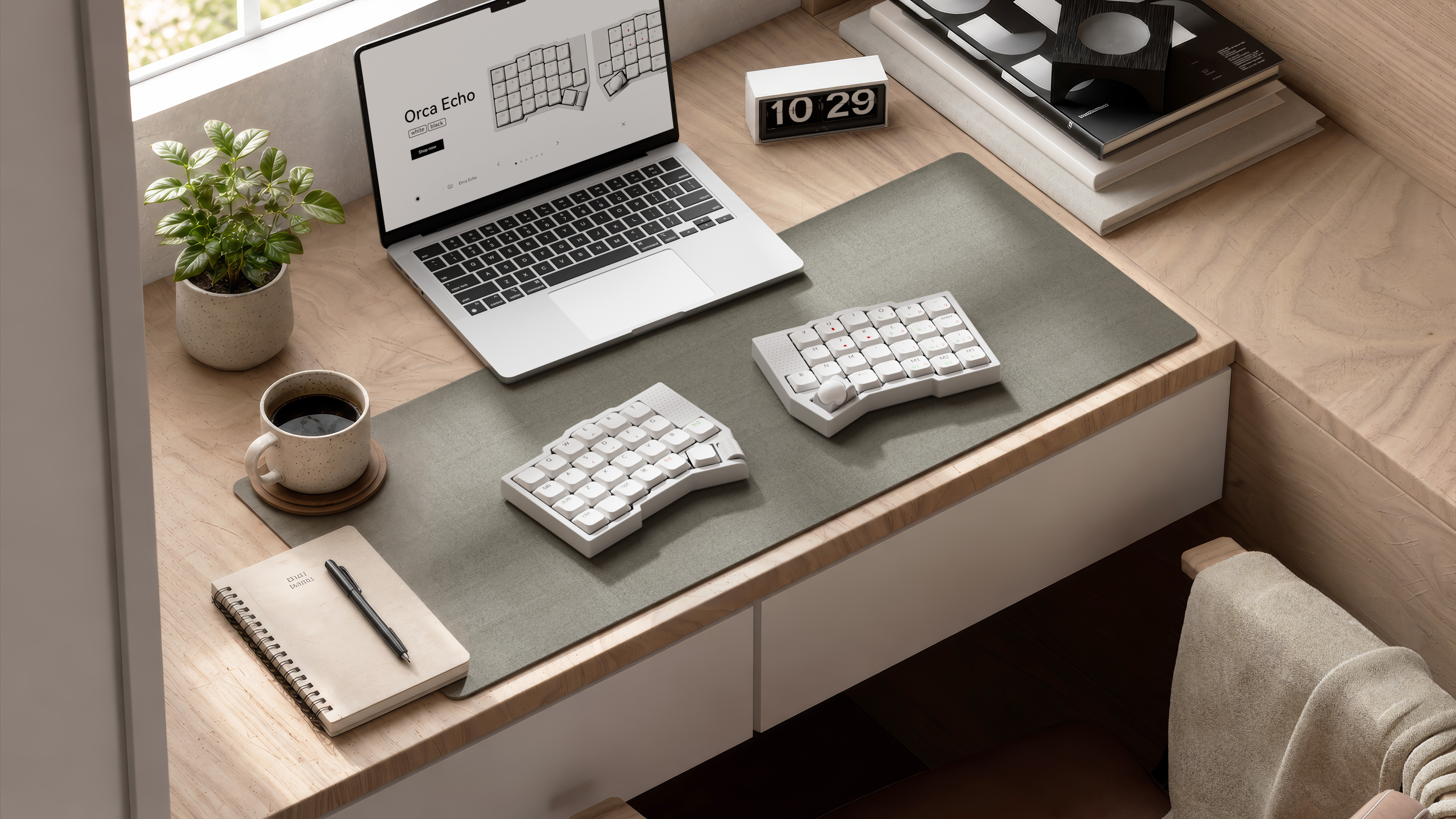
Three Integrated Pointing Interfaces
Everything you need, right at your fingertips.
The built-in 19mm trackball is positioned within easy reach of your right thumb, allowing you to control the cursor without moving your hand away from the keyboard.
Combined with a horizontal scroll wheel and vertical scroll pad, the Orca Echo provides intuitive navigation and effortless multitasking.

Magnetic Split Design
Two halves. One seamless experience.
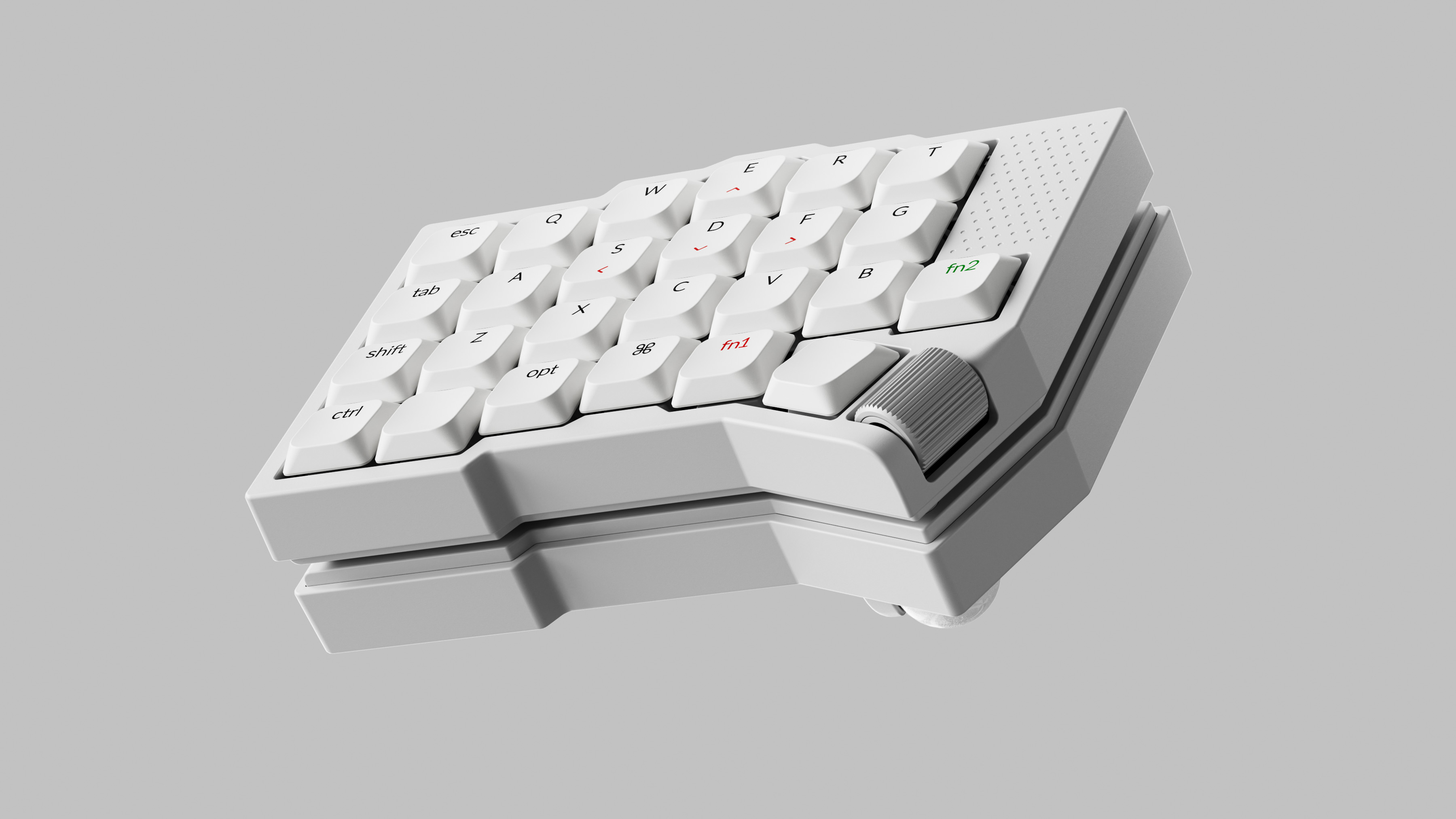
The magnetic connection allows both keyboard halves to snap together securely for a unified setup or separate effortlessly for flexible positioning.
Designed with portability in mind, the Orca Echo can be carried conveniently with its dedicated carrying case.
Customise with Keychron Launcher
Your keyboard. Your rules.
Personalise your typing experience directly through your browser without installing additional software.
Customise all 49 keys, as well as the trackball, scroll wheel, and scroll pad functions to match your workflow and preferences.

Column-Staggered Layout
Designed around the natural movement of your fingers.
Unlike conventional row-staggered keyboards, the column-staggered layout aligns keys with the natural direction of finger movement.
This ergonomic arrangement helps minimise unnecessary finger travel, creating a more comfortable typing experience.
Beginner-Friendly 49-Key Layout
A simpler introduction to split keyboards.
Designed for users exploring split keyboards for the first time, the optimised 49-key layout offers essential functionality in a compact form.
Enjoy a streamlined typing experience that balances ergonomic design, efficiency, and ease of use.
Newly Developed Low-Profile Switches
Discover a refined typing experience with specially developed switches and ultra-thin socket technology.
Ninja
Linear SwitchSmooth, quiet, and effortless. Crafted with POM material, the Ninja linear switch delivers consistent and fluid keystrokes.
Samurai
Tactile SwitchEnjoy distinct tactile feedback with every keypress. Designed for those who prefer a more defined and responsive typing feel.
Nova Socket
Ultra-Thin Socket TechnologyDeveloped specifically for Orca Echo, the ultra-thin Nova Socket helps reduce keyboard thickness and weight while enhancing portability and typing comfort.
Work Your Way
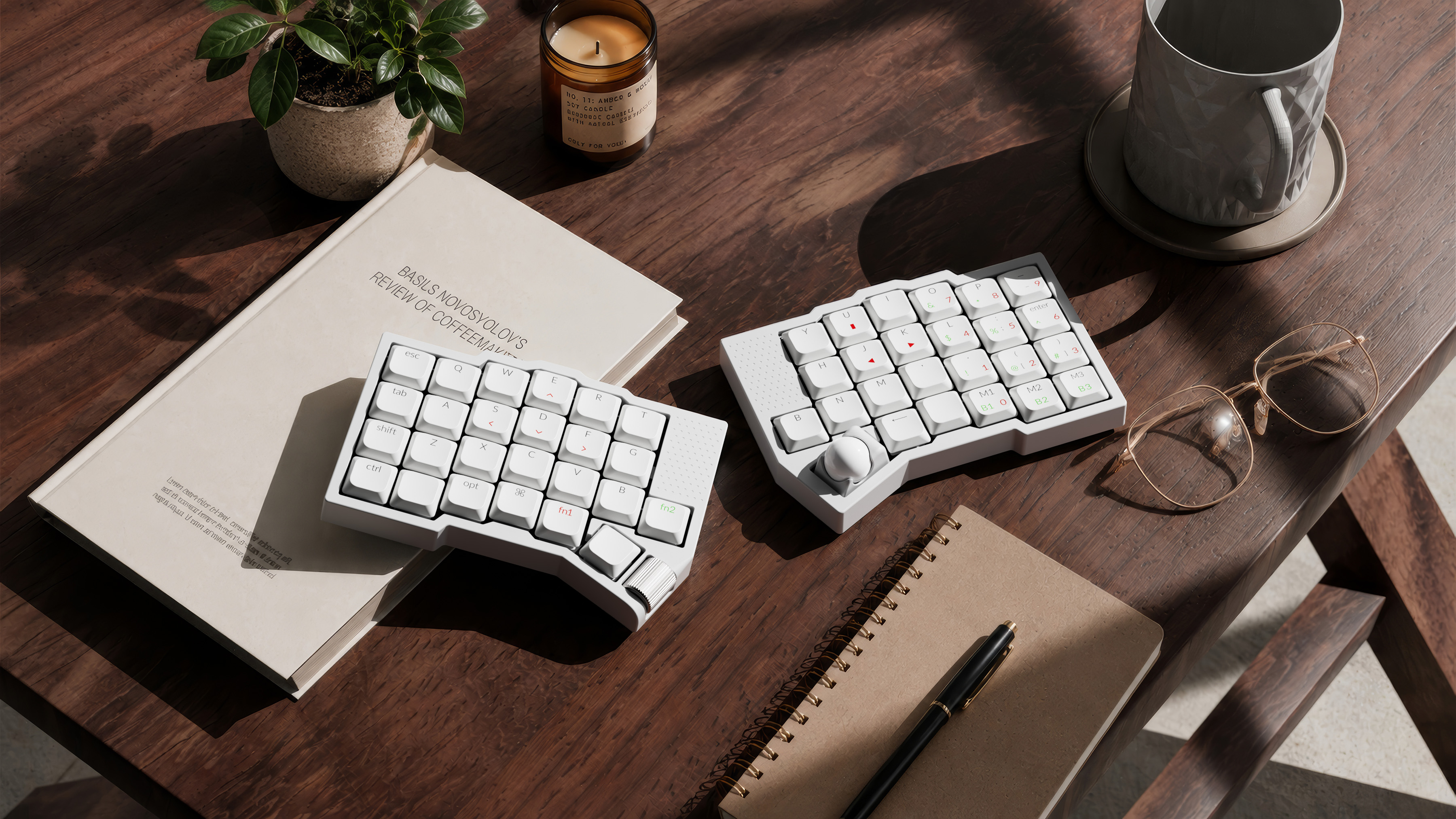
A compact, flexible keyboard built for modern workspaces.
Specifications
| Product Name | Keychron Orca Echo |
|---|---|
| Layout | 49-Key Split Layout |
| Trackball | 19mm |
| Connectivity | USB Wired / 2.4GHz Wireless / Bluetooth (Up to 3 Devices) |
| Bluetooth Version | 5.3 |
| Firmware | ZMK Open-Source Firmware |
| Battery | 650mAh per Half |
| Left Unit Dimensions | 144 × 106 × 22mm |
| Right Unit Dimensions | 144 × 106 × 32mm |
| Switch Options | Ninja Linear / Samurai Tactile |
| Switch Material | POM |
| Compatibility | Mac & Windows |
| Colours | Black / White |
| Package Contents |
Orca Echo Keyboard (Left & Right Units) USB-C Cable USB-A to USB-C Adapter Windows Replacement Keycaps Switch & Keycap Puller 2.4GHz Wireless Receiver User Manual |
Frequently Asked Questions
1. What makes the Orca Echo different from a traditional keyboard?
The Orca Echo features a 49-key ergonomic split layout with an integrated 19mm trackball, horizontal scroll wheel, and vertical scroll pad. This design allows users to type and navigate without constantly switching to a separate mouse.
2. Can I use the Orca Echo wirelessly?
Yes. The Orca Echo supports 2.4GHz wireless, Bluetooth 5.3, and wired USB connectivity. Bluetooth supports connections to up to three devices.
3. Can I customise the keys and trackball functions?
Yes. Keychron Launcher allows you to customise all 49 keys, the trackball, scroll wheel, and scroll pad functions directly through a compatible web browser.
4. Is the Orca Echo suitable for beginners?
Yes. Its optimised 49-key layout is designed to make the transition to split keyboards more approachable. The magnetic connection also allows the two halves to be joined together or positioned separately.
5. What switch options are available?
The Orca Echo features newly developed low-profile switches. Ninja linear switches provide a smooth and quiet typing feel, while Samurai tactile switches deliver more noticeable feedback. Both are designed to complement the keyboard's compact profile.
Meet The Orca echo
Meet Orca echo, a 49-key split keyboard with a built-in trackball, a scroll wheel, and Scroll Pads on both halves. Together, they bring typing, pointer control, and scrolling to one keyboard.

Type, Point, and Scroll, All Within Reach
A typical computer session moves between typing, pointer control, and scrolling. Switching between devices can interrupt that flow. Orca echo keeps these controls close to the keys: a trackball under your right thumb moves the pointer, a metal scroll wheel under your left thumb adjusts volume by default, and a Scroll Pad on each half scrolls through pages.
Ready to Use from the Start
Both halves arrive assembled, with keycaps and switches installed and firmware loaded. Connect Orca echo and start typing. No soldering, firmware flashing, or parts assembly is needed.

Try Typing
Numbers, symbols, and other functions sit on two layers, with color-coded keycaps to help you find them.
Familiar keys such as Ctrl, Shift, and Tab stay in recognizable positions, so you can start with the shortcuts you already know.

Everything Under Your Hands
Orca echo combines built-in pointer and scroll controls with a flexible split layout, hot-swappable switches, and tri-mode connectivity. It arrives ready to use, supports customization in Keychron Web Software, and its two halves attach magnetically for carrying.

A Trackball Under Your Right Thumb
A 19 mm trackball sits at the outer edge of the right half, within easy reach of your thumb. Roll to move the pointer while keeping your hand close to the keys, so you can stay in your typing flow and reach for a separate mouse less often.

Trackball Layer Switching is off by default. When enabled in Keychron Web Software, moving the trackball past the set distance switches the keyboard to Fn1. You can then press the keys assigned to mouse buttons on Fn1 without holding Fn1. After the set idle time, the keyboard returns to the previous layer. Four-way gesture mode is a separate option that assigns actions to the trackball’s up, down, left, and right movements.
Scroll Without Reaching
The metal scroll wheel under your left thumb adjusts volume by default. Turn it left to lower the volume or right to raise it. In Keychron Web Software, you can assign a different function to each direction.
The Scroll Pads sit near the inner top edge of each half. Swipe up or down to move through a page. You can customize the up-swipe and down-swipe actions separately and adjust Scroll Pad sensitivity in Keychron Web Software.

Set It Up Around You
A conventional keyboard fixes the distance and angle between your hands. Orca echo has two separate halves, so you can adjust their spacing, angle, and tenting to suit your desk and sitting position.
Split Layout
Place the two halves at a distance that feels comfortable for your shoulders. Bring them closer, move them farther apart, or change their angle to suit the way you sit. You can readjust the layout if your desk, chair, or workspace changes.

Two-Step Tenting
Each half offers two tenting steps, giving you three typing angles: flat, first-step tenting, and second-step tenting. Raise the inner edge to either tenting step to choose your preferred angle. The support feet are aluminum, with metal threaded inserts.

Your First Split Keyboard
If this is your first split keyboard, familiar keys offer an easy starting point. As you use Orca echo, you’ll soon feel at home with the two halves and column-staggered keys.

49 Keys, with Familiar Keys in Place
Orca echo has 49 keys across two halves. Familiar keys such as Ctrl, Shift, and Tab stay in recognizable positions, so you can keep using shortcuts you already know while exploring the split layout.
Column-Staggered Layout
Orca echo arranges keys in columns, with each column following the finger assigned to it. Each finger mainly moves within its own column.

Simple Layers
Press a key to use its main legend. Hold Fn1 while pressing a key to use the red legend for numbers and directional controls. Hold Fn2 while pressing a key to use the green legend for symbols and other functions. The legend colors show which Fn key to hold. You can remap keys in Keychron Web Software if you want to change their functions.

Magnetic Storage for Carrying
Spread the two halves apart while you work. To put the keyboard away, bring them together back-to-back. Built-in magnets hold them together for storage and transport.

Tri-Mode Connectivity
Connect the right half to your computer using 2.4 GHz wireless, Bluetooth 5.2, or wired USB-C. It can pair with up to three devices over Bluetooth, so you can switch among a desktop, laptop, and tablet. In Duo mode, the right half acts as the host; the left half connects wirelessly to the right half.

A Quieter Typing Setup
Acoustic foam inside both halves works with the low-noise switches to reduce typing noise. It can help keep keystrokes quieter in a shared office, during a call, or when you are working at night.
Battery Life
Orca echo has no backlighting. The left half runs for about 78 hours in Duo mode; the right half runs for about 36 hours over 2.4 GHz or 42 hours over Bluetooth. The included USB-C cable charges both halves at once in about two hours.

Customization With AI Assistance
Keychron Web Software runs in your browser, with no installation required. Tell its AI assistant what you want to change, and it can help apply it. You can also customize Fn layers, macros, trackball DPI, scroll wheel actions, and Scroll Pad functions. Settings are saved to the keyboard and stay with it when you switch computers.
When you switch between Mac and Windows, the software detects your system and previews the key changes for you to confirm. Optional trackball modes can switch to Fn1 while rolling or assign actions to four-way movement. Trackball layer switching is off by default and returns to the previous layer after inactivity.

Hot-Swappable Low-Profile Switches
Orca echo comes with Keychron Apex POM Low Profile Mechanical Switches, available in Red, Brown, or Banana.

Switching to Normal Profile Switches
Many low-profile switches use a different pin layout from standard MX-style mechanical switches. The Keychron Apex POM Low Profile Mechanical Switch, used with Orca echo’s Nova socket, follows an MX-compatible pin layout. This allows it and compatible normal profile MX switches to share the same PCB.

Technical Specifications

What's in the Box
Each Orca echo comes fully assembled, with keycaps and switches pre-installed. The box includes a basic keycap and switch puller, a 2.4G receiver, a 1-to-2 USB-C charging cable, a USB-A to USB-C adapter, extra keycaps, and a user manual.

Frequently Asked Questions
Q1. Do the two halves need to be connected by a cable?
No. The two halves communicate wirelessly, so no cable is required between them.
Q2. Can I use just one half of the keyboard?
Yes. The right half can be used independently without the Fn layer. To use the left half alone, switch to Solo mode and connect it via cable.
Q3. Where are the number keys?
Hold Fn1 to turn the designated keys on the right half into a number pad.
Q4. Do I need to hold Fn1 for mouse clicks?
Trackball-triggered layer switching is disabled by default. Once enabled in Launcher, moving the trackball automatically switches layers. Otherwise, hold Fn1 when clicking.
Q5. Can I adjust the trackball sensitivity?
Yes. You can adjust the trackball DPI in Launcher to suit your preferred cursor speed.
Q6. Can I customise the scroll wheel and touchpad?
Yes. Both can be customised in Launcher. By default, the scroll wheel controls volume.
Q7. Is Orca Echo compatible with Windows?
Yes. Switch the operating system setting in Launcher using Read, Preview and Confirm. Then replace the keycaps with the included Windows and Alt keycaps.
Q8. Does the keyboard layout change automatically when switching computers?
No. You need to change the operating system setting manually in Launcher.
Q9. Is Orca Echo difficult to learn?
The column-staggered layout may take some time to get used to. However, the 49-key design retains commonly used keys, making it suitable for first-time split-keyboard users.
Q10. Are the switches hot-swappable? Does it have backlighting?
Yes, the switches are hot-swappable and can be replaced without soldering. Orca Echo does not have backlighting.
Q11. Can I use standard-height switches?
A native standard-height version is planned. A low-profile-to-standard-height conversion kit is also planned, including a plate, switches, keycaps and screwdriver.
Q12. What replacement trackball colours are available?
Red, yellow and blue replacement trackballs are sold separately. The black keyboard comes with a black trackball, while the white keyboard comes with a white trackball.
Q13. Why does the keyboard stop responding after being idle?
The keyboard has entered sleep mode. Simply press any key to wake it up.
